# Circle: API Keys

{% hint style="warning" %}
Although you can create API keys in the Circle app, the key does nothing if you do not have the Core Functionality API enabled by your Circle support rep.&#x20;
{% endhint %}

### Step 1: Enable the "Core Functionality API" on your Circle account

*This is not a self-service option. You will need the Circle team to enable this for you.*

1. If you have already enabled the "Core Functionality API" on your Circle account, you can skip this whole section. Otherwise...
2. Reach out to your Circle support representative, and ask them to enable the "Core Functionality API" on your Circle account.&#x20;
3. Your Circle support representative will send you an MSA to sign.&#x20;
4. Once signed, request an API following the steps in the next section.

***

### Step 2: Get a read-only API key from Circle

{% hint style="danger" %}
**If your Core Functionality API gives both read AND write access via API, you must request a read-only API key from Circle.** Please do not create one from the Circle app itself, since you cannot configure the permissions on that page (at the time of writing).&#x20;
{% endhint %}

**If your Core Functionality API is configured for both read & write, or you are unsure...**

1. Ask your Circle support representative to create a **read-only API key** for you
2. They will either send you the key, or you will be able to see it in your Circle account, under [Developer > API Keys](https://app.circle.com/developer/api-key)

**If your Core Functionality API is configured as read-only...**

1. Log into your [Circle account](https://app.circle.com/)
2. Navigate to [Developer > API Keys](https://app.circle.com/developer/api-key) using the navigation bar
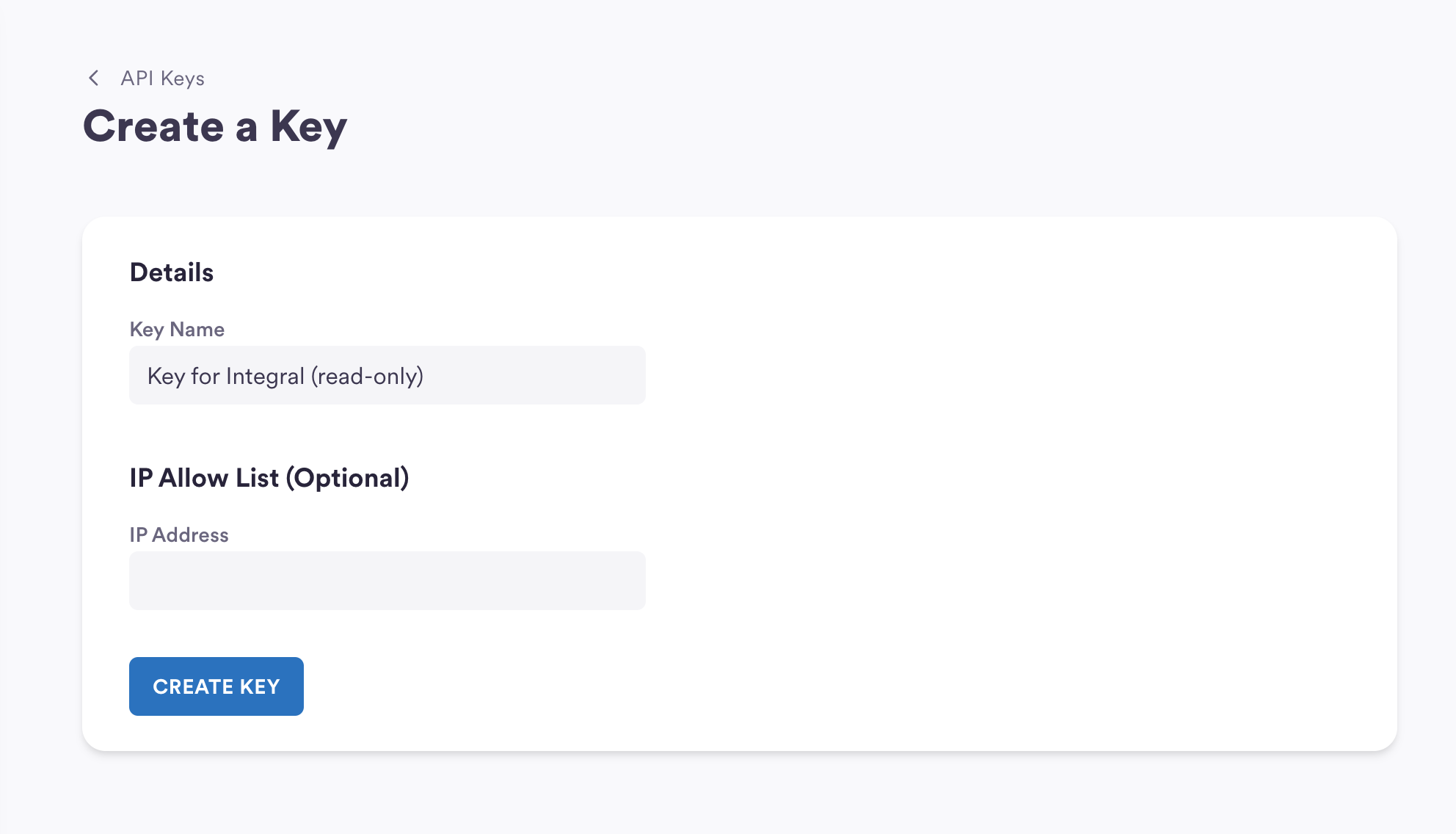
3. Click on the blue "Create a Key" button
4. Give your API key a nickname, and leave the IP Allowlist empty. Click "Create".&#x20;
   1. *Note: All other configurations are done in the backend by your Circle rep.*
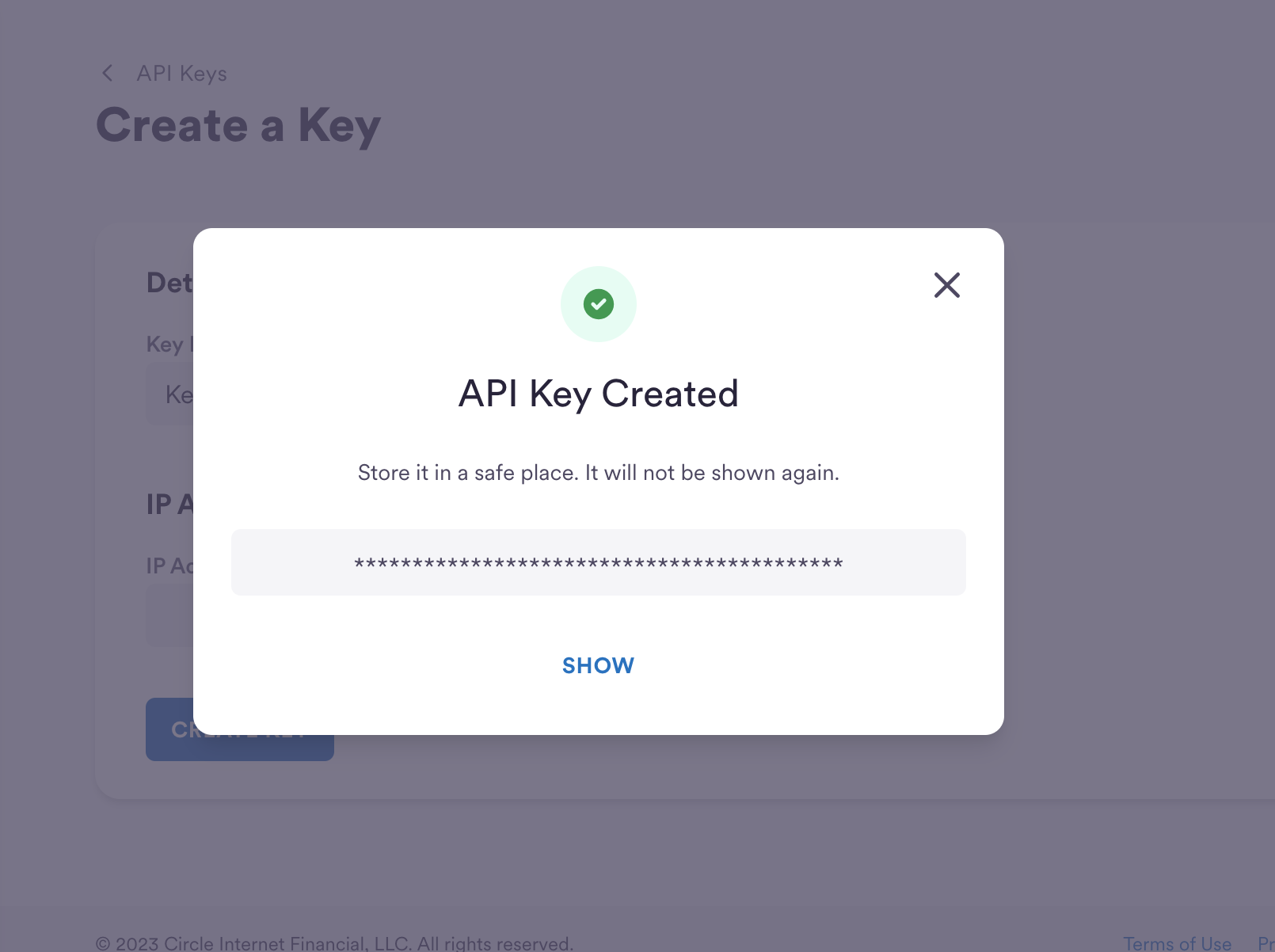
5. Once created, a pop-up will appear hiding your API key. Click "Show". **Copy this key somewhere safe as you will not be able to access it again.**&#x20;
6. That's it! The Key will show in your list with the nickname you gave it.&#x20;

<figure><img src="https://3061199926-files.gitbook.io/~/files/v0/b/gitbook-x-prod.appspot.com/o/spaces%2Ft1fkaxq4yvhcAFiQKv7R%2Fuploads%2FZNaHG8IDrVlLgC2nehp1%2FScreen%20Shot%202023-07-11%20at%201.42.56%20PM.png?alt=media&#x26;token=92b80caa-6e0a-4081-b515-e94dc4a02fca" alt=""><figcaption><p>Give your API key a recognizable nickname, and leave the IP Allow List empty</p></figcaption></figure>

<figure><img src="https://3061199926-files.gitbook.io/~/files/v0/b/gitbook-x-prod.appspot.com/o/spaces%2Ft1fkaxq4yvhcAFiQKv7R%2Fuploads%2FjRU4jO4kM4MDWmF5r1qQ%2FScreen%20Shot%202023-07-11%20at%201.43.20%20PM.png?alt=media&#x26;token=fdf1b16e-db34-4f92-b331-7e16b90c8e8e" alt=""><figcaption><p>Click on "Show" to see your new API key, and store it safely somewhere.</p></figcaption></figure>

***

### Step 3: Upload your read-only Circle API key to Integral

1. Navigate to [+Wallets page](https://app.integraltreasury.xyz/accounts/add) in Integral
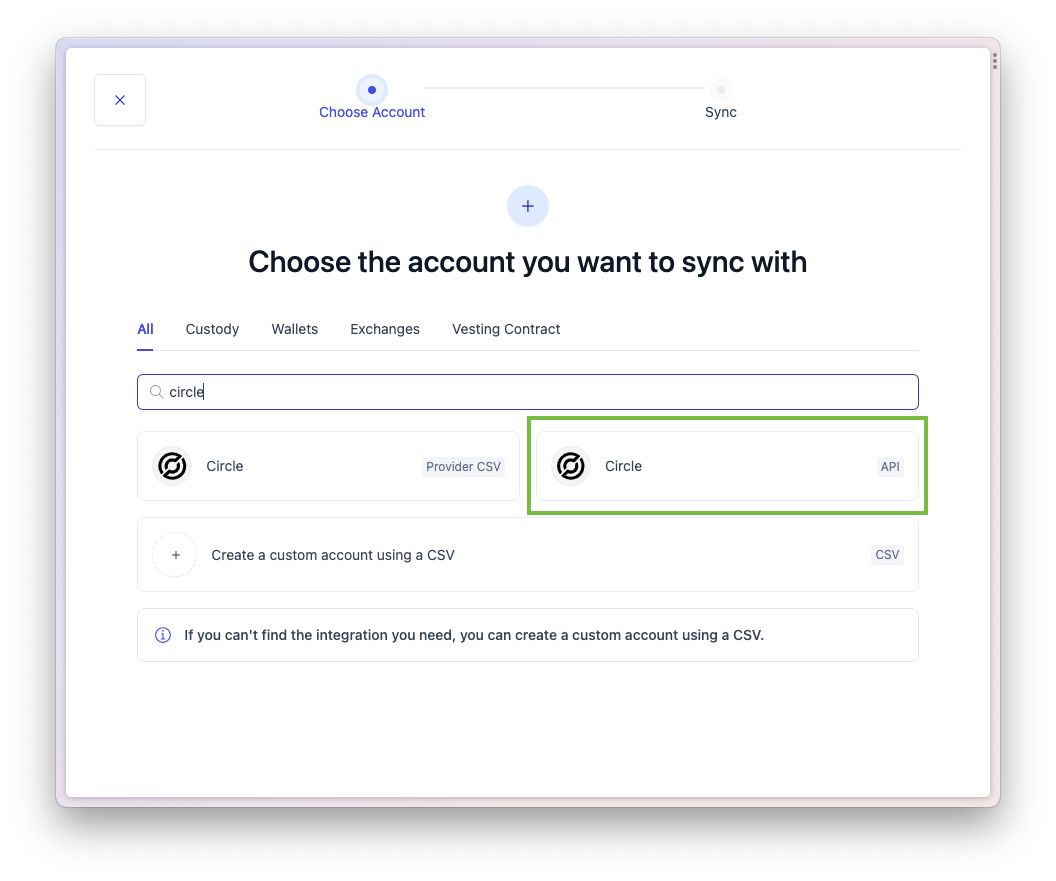
2. Search for "Circle" and choose the ["Circle: API" option](https://app.integraltreasury.xyz/accounts/add/circle_api)
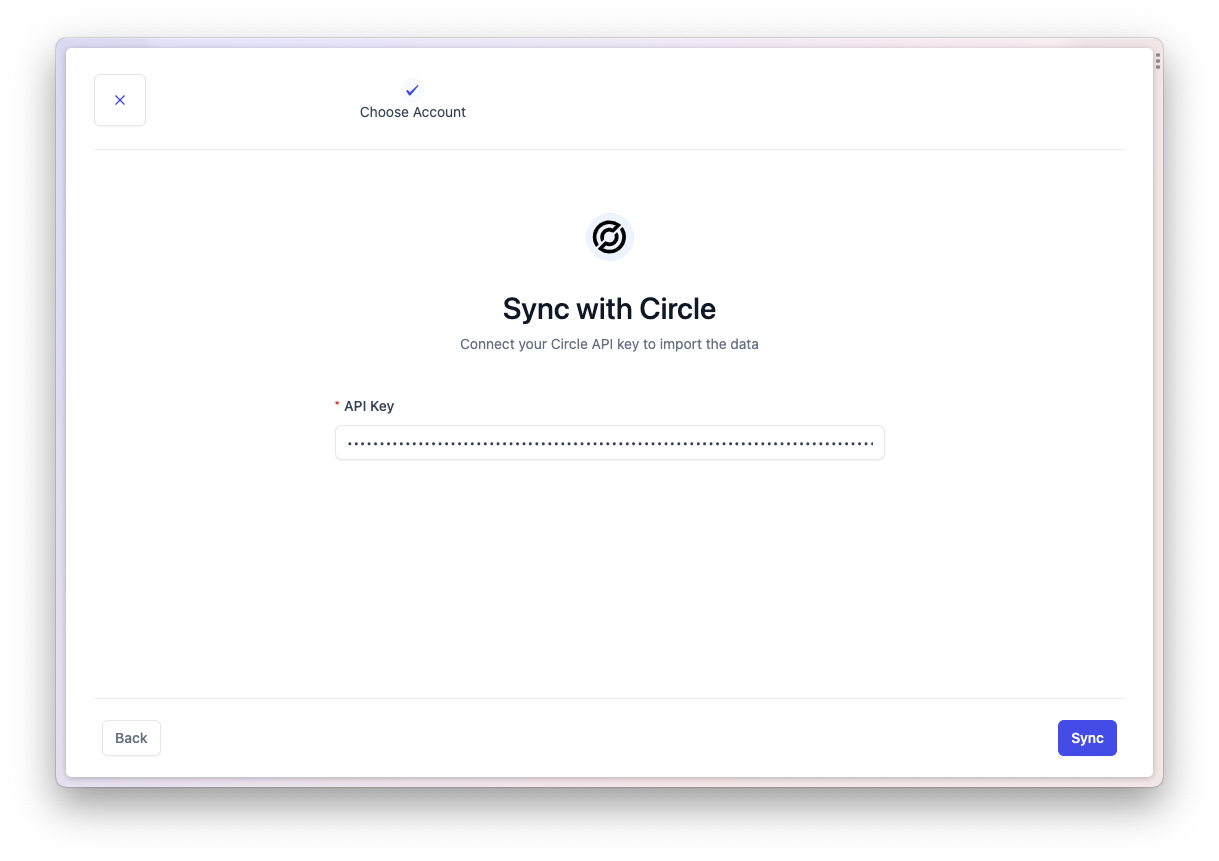
3. Paste your new read-only API key into the search box
4. Click "Sync"
5. Your Circle account will be imported with your wallets, along with the transactions

<figure><img src="https://3061199926-files.gitbook.io/~/files/v0/b/gitbook-x-prod.appspot.com/o/spaces%2Ft1fkaxq4yvhcAFiQKv7R%2Fuploads%2F4r0GCy8xTpHZXeE1VDDL%2FScreen%20Shot%202023-07-21%20at%204.18.01%20PM.png?alt=media&#x26;token=aaf5beaa-9e5c-4390-9020-9c09d75feb5c" alt=""><figcaption><p>Search for "Circle" in the +Wallets page and choose the API option</p></figcaption></figure>

<figure><img src="https://3061199926-files.gitbook.io/~/files/v0/b/gitbook-x-prod.appspot.com/o/spaces%2Ft1fkaxq4yvhcAFiQKv7R%2Fuploads%2F555j4WKtjzxPPGqe1IEU%2FScreen%20Shot%202023-07-21%20at%204.10.40%20PM.png?alt=media&#x26;token=1941496b-b261-4a5c-ad25-bb26cc35391b" alt=""><figcaption><p>Paste in your Circle API key and click "Sync" to import your account transactions</p></figcaption></figure>

{% hint style="warning" %}
Circle uses USD and USDC interchangeably. This means you can deposit USD and withdraw USDC 1-1. To prevent negative USDC balances on your Circle account, Integral creates artificial "swaps" of USD to USDC, or vice versa, where relevant. You will see those labeled as Exchange, with memo "Integral swap USD -> USDC" and priced 1-1 with no capital gain/loss.&#x20;
{% endhint %}