# Step 3: Sync Transactions to Your ERP
There are two way that you can sync to your connected ERP: automatically through Daily or Monthly intervals, and manually through your Bookkeeping page.
## Manual Journal Entry Sync (Bookkeeping V2)
**To initiate a sync to your ERP in V2, click `"Sync x Txns"` in the bottom-right corner of the Bookkeeping page.** Once a sync to your ERP is initiated, every transaction that is categorized in the *Reviewed* tab will be posted as journal entries according to the bundling option specified. Once the sync is complete, the transactions are moved to the *Synced* Bookkeeping tab.
Demo of an end-to-end syncing workflow in V2 and what to expect.
## Manual Journal Entry Sync (Bookkeeping V1)
**To initiate a sync to your ERP, click `"Sync to QBO/Xero"` in the top-right corner of the Bookkeeping page.** Once a sync to your ERP is initiated, everything marked *Ready to Sync* will be posted as journal entries according to the bundling option specified. Once the sync is complete, the transactions are moved to the *Synced* Bookkeeping tab.
Demo of an end-to-end syncing workflow in V1 and what to expect.
## Auto-Syncing Journal Entry
#### What is Auto-Syncing?
Automatic Syncing of Journal Entries will sync any transactions in Ready to Sync (BKV1) or Reviewed (BKV2) directly to your connected ERP for you.
To enable Auto-Sync for Journal Entries, follow these steps:
1. Login to your Integral account
2. Go to Policies -> Accounting
3. Scroll down and **Enable** Automatic Journal Entry Syncing
4. Select to sync Every Day, or Every Month (on the last day)
{% hint style="success" %}
TIP: Enabling Auto-Sync for Journal Entries along with rules that [automatically mark transactions as Ready to Sync](https://integral-treasury.gitbook.io/integral-treasury/start-guide/sync-to-your-erp/step-2-mark-transactions-as-ready-to-sync) is a great time saver!
{% endhint %}
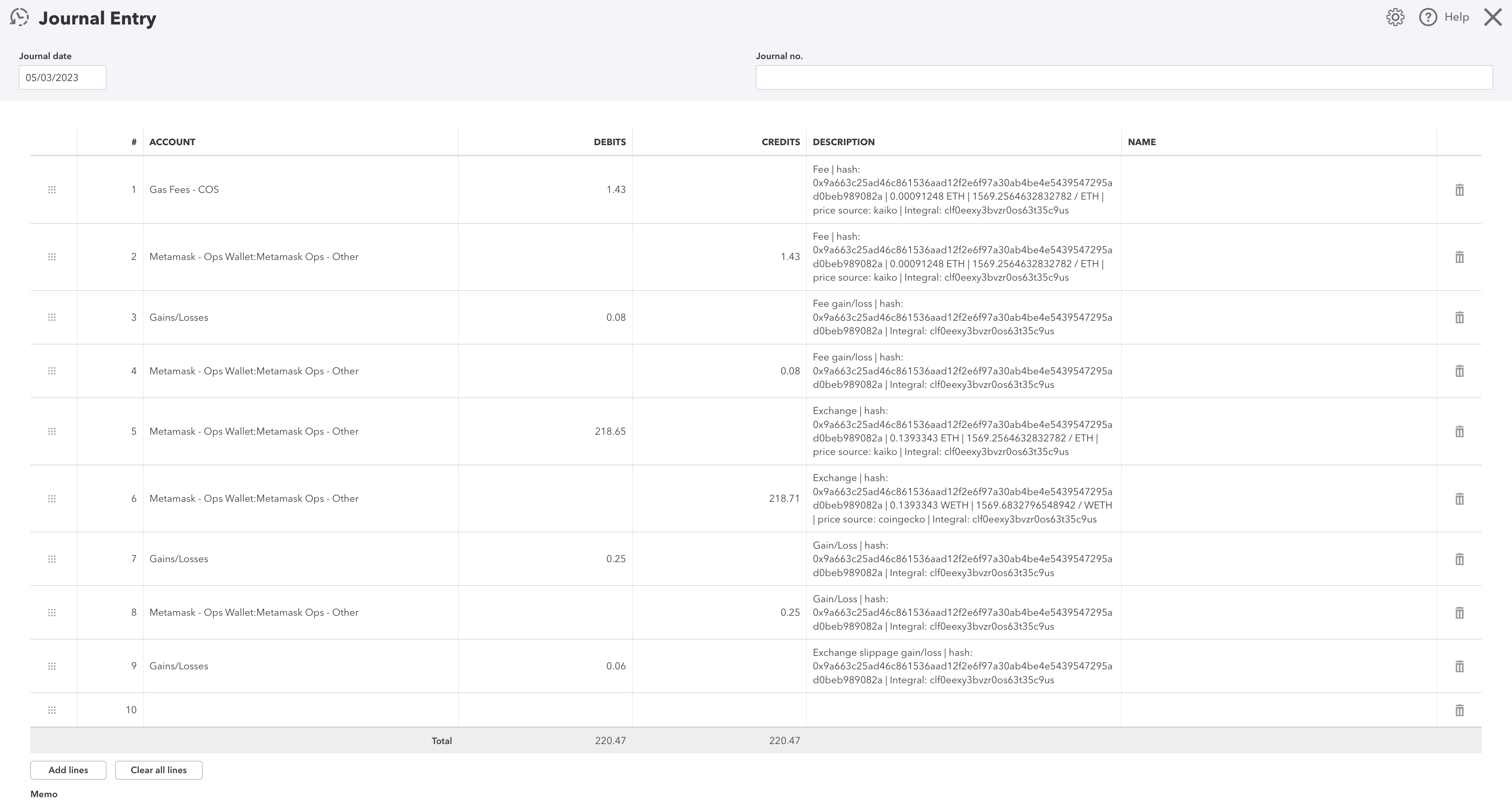
**Quickbooks Journal Entry Example**\
Below is an example of a token swap journal entry posted to Quickbooks. In the Journal Entry, there are individual lines for the: Swapped amounts, Fee, Gain/Loss on the amount, Gain/Loss on the fee, and slippage (where relevant).
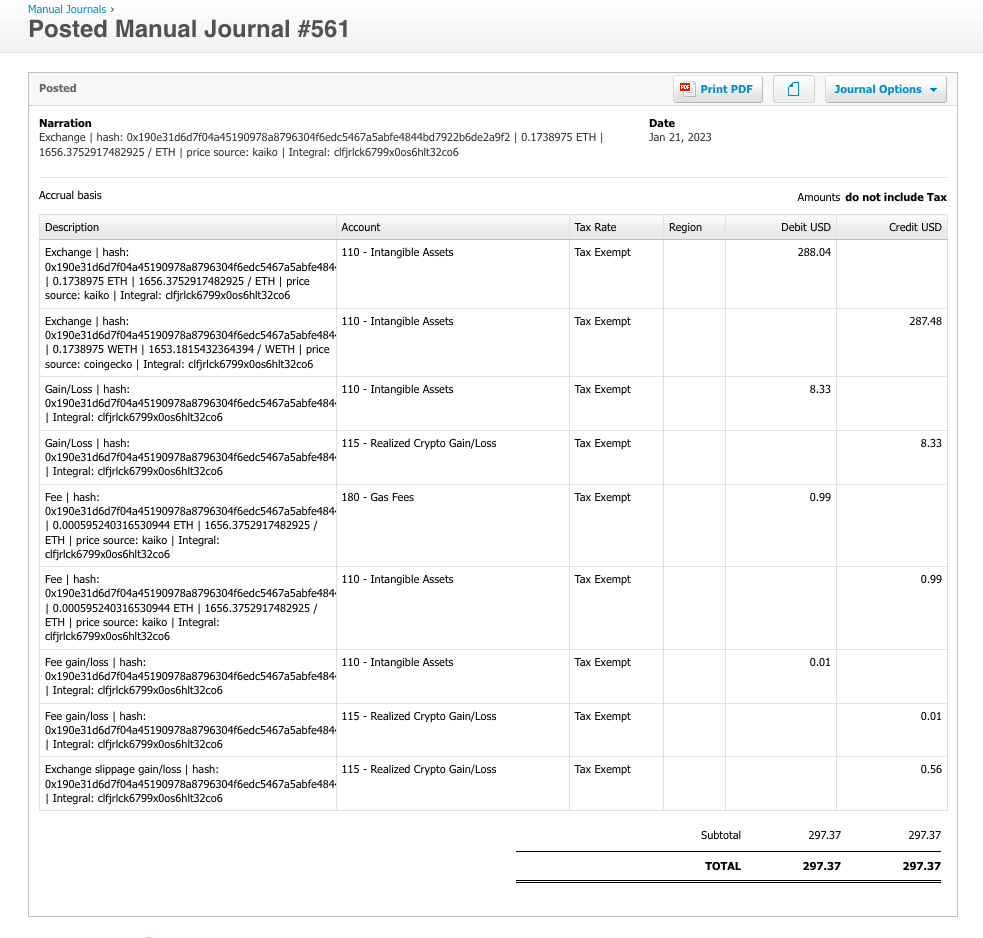
**Xero Journal Entry Example**\
Below is an example of a token swap journal entry posted to Xero. In the Journal Entry, there are individual lines for the: Swapped amounts, Fee, Gain/Loss on the amount, Gain/Loss on the fee, and slippage (where relevant).
{% hint style="info" %}
Have questions about syncing to your ERP? See our [FAQ here](https://integral-treasury.gitbook.io/integral-treasury/troubleshooting/faq-erp-and-chart-of-accounts).
{% endhint %}